Saturday, January 24, 2015

Embedding Digital Texts.

How can digital textbooks, e-learning and open course sites be used in education?

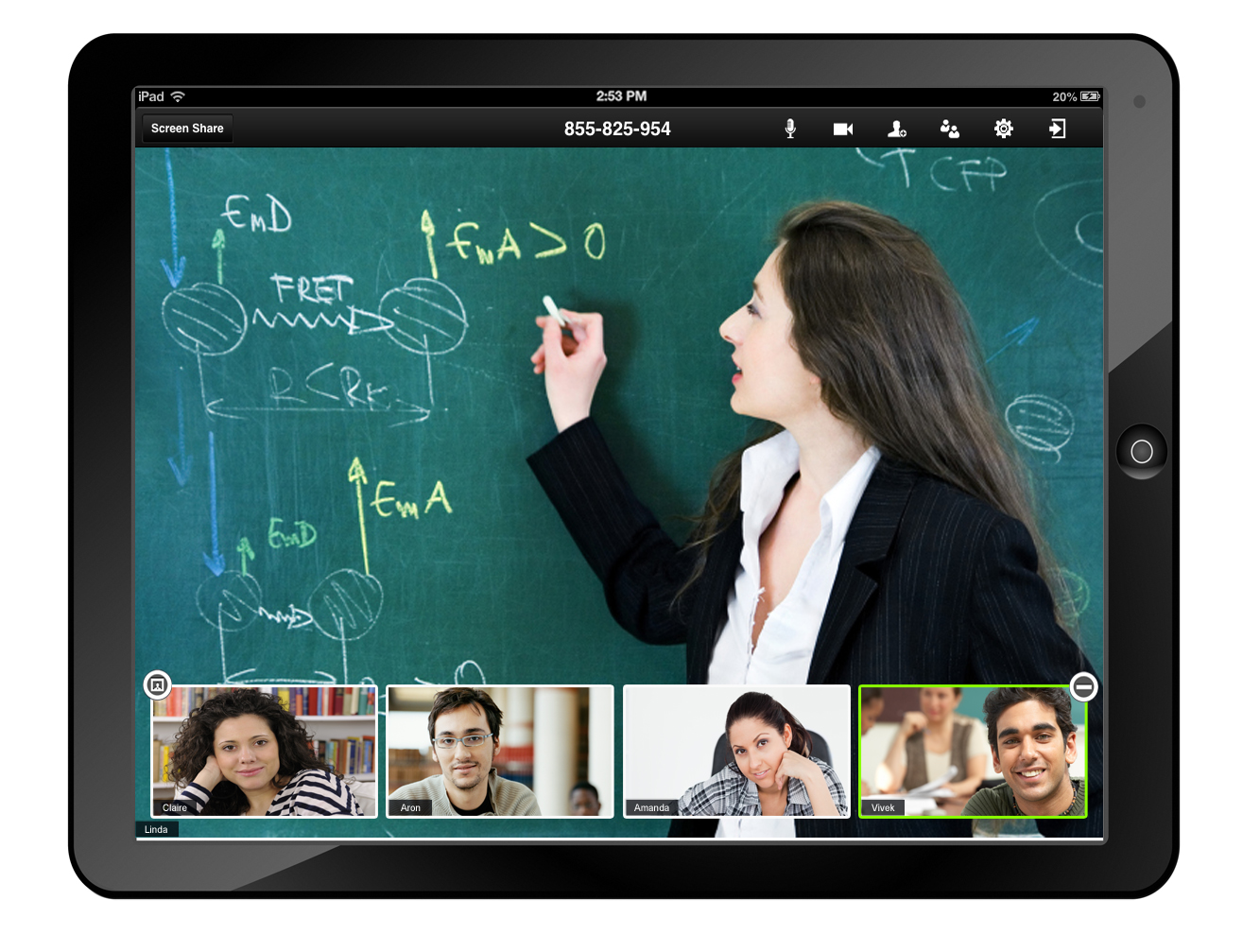
Two years ago, the Secretary of Education called for a switch to all digital textbooks in the next few years (E-School News, 2012). I think it will take quite a few more years for us to get there, but I believe it is the way of the future. When I worked for a computer company many years ago and they were talking about doing away with printed user manuals, I was incredulous. But here we are in the 21st century and computers do not come with manuals. The consumer must go online to access user guides. In my graduate program, I personally have used digital texts more often than printed textbooks, whenever it was possible. I prefer to use digital texts to highlight important points, just using the Kindle reader, and am able to go back and search for those highlights and bookmarks.


http://www.writerswrite.com/pics/apple_ibooks_textbooks_highlighting.jpg


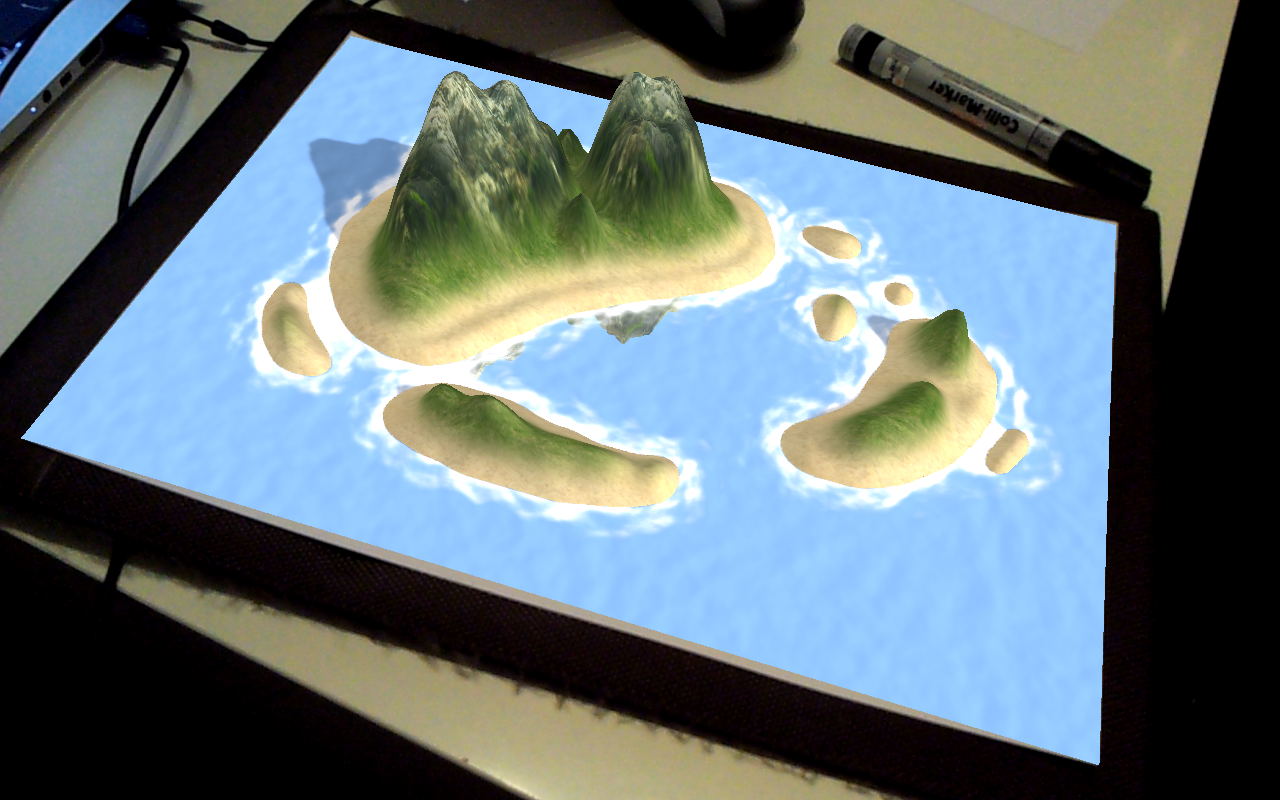
Digital textbooks can offer many more resources, like in-text videos and even Augmented Reality which allows 3-dimensional interactive images of the subject matter, rather than just 2-dimensional photos. Digital texts can also be updated to add up to date information, something that cannot be done with paper textbooks. Using Apple's iBooks Author, teachers can create or add to existing texts. Apps like Subtext allow students and teachers to discuss books online, and highlighting passages and insert comments.  Other apps, such as VoiceDream Reader and Read2Go, help struggling readers and people with disabilities by converting text to speech, highlighting each word as it is spoken, and also may allow students to highlight and save passages for digital note-taking.  

https://play.google.com/store/apps/details?id=de.berlin.reality.augmented.landscapar

E-learning comes in many forms. Using mobile apps to play educational games extends learning in math, spelling, social studies, and gives students a fun but educational way to enjoy learning. Note taking apps, like Notability and OneNote make note taking easier and more efficient. There are many educational sites that help learners to practice skills, such as Reading A-Z and Education.com. Use of social networking sites, including Edmodo, Twitter, Google Plus, Pinterest, Educlipper and Learnist, to name a few, allows teachers and students to share information and interact outside of classroom time, allowing for on-demand learning. Google Drive and wikis provide a tool for students to collaborate synchronously and asynchronously on projects and create products. Social bookmarking tools such as Diigo, Evernote, and Delicious can also be used to share resources with and between students.  Many sites, such as WriteAbout and Scratch include communities where kids can share create and learn from each other. As Fran Smith (2007) said, "Schools should reflect the world we live in today. And we live in a social world. We need to teach students how to be effective collaborators in that world." Although many teachers and administrators are wary of using social networking tools, many can be made private and moderated by the teacher while students are learning social media and digital citizenship skills. 


http://ocw.mit.edu/high-school/

Open course sites, also known as MOOCs, provide a wealth of additional courses for free that teachers can use to enrich the school curriculum, flip the classroom or to supplement courses that may not be available locally.  They may also be used as transition courses, to help students decide on a future college major. Students learning from home can benefit from these courses, many of which award certificates of completion for each course. Free open lectures are offered by some of the most prestigious colleges, like Harvard, MIT and Stanford. Sites like Khan Academy and iTunesU offer free online courses. Khan Academy measures and documents students mastery levels and adjusts lessons to adapt to the student's level.  Another free open course site is ALISON, which stands for Advanced Learning Interactive Systems Online. ALISON provides a multitude of courses including vocational diploma and certificate courses free of charge, which can help lead to employment (Bornstein, 2012). Learners must pay a fee for a printed certificate or diploma, but they can also print their transcripts if they do not want to pay for the certificates.  Open Culture has a massive listing of free online course sites. 


Sources cited:


E-School News. Education chief wants textbooks to go digital.       http://www.eschoolnews.com/2012/10/03/education-chief-wants-textbooks-to-go-digital/?


Borenstein, D. (2012). Open education for a global economy.              http://opinionator.blogs.nytimes.com/2012/07/11/open-education-for-a-global-economy/?_r=2

Khan Academy. Mastery levels. https://khanacademy.zendesk.com/hc/en-us/articles/203404054-What-do-Khan-Academy-s-mastery-levels-mean-

Smith, F. (2007). How to use social networking technology for learning.     http://www.edutopia.org/how-use-social-networking-technology

MIT Open Course Software. Highlights for highschool. http://ocw.mit.edu/high-school/more/for-teachers/

Open Culture. (2014). 1100 Free online courses.  http://www.openculture.com/freeonlinecourses

Wednesday, January 14, 2015

Building Media Literacy


We live in a society that is “media saturated, technologically dependent, and globally connected” (NCSS, 2009, p. 1).  People are bombarded daily by images and sound bites about what is happening in the world not only from books, newspapers, magazines, television and radio, but also online via mobile devices, including cell phones, iPods, and computers. Students today spend the majority of their waking hours plugged in to the net in one way or another; and they even take their devices to bed with them, which leaves them with a 24 hour access to information, from the music to which they listen to the social media sites they frequent.


Remember the old adage, consider the source? Students need to be able to identify who or what the source of the information is and how to find alternative opinions. They need to be able to analyze and evaluate the veracity of the information, using verifying sources to compare and contrast viewpoints. 
In order for students to make informed decisions, the National Council of Social Studies believes that students should ask probing questions such as:
  • What social, cultural, historical, and political contexts are shaping the message and the meaning I am making of it?
  • How and why was the message constructed?.
  • How could different people understand this information differently?
  • Whose perspective, values and ideology are represented and whose are missing?
  • Who or what group benefits and/or is hurt by this message?” (NCSS, 2009, p. 1)

Project Look Sharp (2008) recommends that students should also compare different sources on the same topic and create their own media reports about a topic using different forms of media, showing the same information with different forms of media via opposing viewpoints. 

Here’s a great video about media literacy, by Melissa Fabello. 


Sources cited:

melissafabello.com. (2014).  Media Literacy 101. [Video]. From: http://youtu.be/lFF8wAqy-wo

NCSS. (2009). Media literacy. From: http://www.socialstudies.org/positions/medialiteracy

Project Look Sharp. (2008). From: http://www.projectlooksharp.org/Resources%202/12BasicWaysBooklet.pdf


Image credit:


Jagran Lakecity University. http://www.jlu.edu.in/connect-here/media/


Thursday, January 8, 2015

Web 2.0 Tools

Web 2.0 is the next generation of the World Wide Web, which allows users to create content, interact with others to collaborate and share, download, remix and publish new content.  Web 2.0 tools help users to do these things and the great thing is they are accessible anywhere there is Internet access. 21st century educators use these tools to enhance their students' learning, communication and creativity.  

Discovery Education (2013) says that Web 2.0 tools fall into four categories: presentation tools, video tools, mobile tools and community tools. 

Presentation tools, such as Prezi, emaze, Google Slides, Slideshare, VoiceThread and HaikuDeck, help you to create presentations online and, in most cases, for free.  

Video tools, such as Animoto, YouTube, Vimeo, Jing, Photobucket, and Movie Masher, allow users to create and/or share their videos or photo slideshows with others. 


Mobile tools and community tools cover a wide range of tools from learning management and polling tools, like
PollEverywhere, Socrative, Nearpod,  Quizlet, TitanPad and Padlet to Nings, wikis, blogging tools, Google Drive, Edmodo, Twitter and other community-based creation and sharing tools that cater to gamers, game designers, writers, artists, music lovers, and even educators. 

One tool, that I have used with my students, is Google Slides, which we used to create a group presentation.  Each student created one slide within the presentation with a quote, which they chose from Brainyquotes.com and an image to pair with it, to illustrate something they loved or about which they were passionate. When it was done, we had a great presentation to share with everyone.  I like that Google allows you to control who can access each individual document.


I have also used Scratch to teach computational thinking and problem-solving (as well as programming concepts).  Scratch is a community-based website where users can create video games or animated stories and interactive greeting cards using drag and drop programming blocks. They can
share their projects with the community. It is expected that they will remix and reuse one another's projects to create their own. Scratch keeps track of each creator and automatically creates acknowledgments for each contributor to the remix tree. Users can also ask others in the community for help on their projects if they get stuck.  You can also create galleries, for curating projects by category. I have created a gallery for my class to share their projects with each other. 


Another tool, I have used, is Storybird which is a storybook creator which uses amazing artwork, submitted by artists, to inspire writers to create stories about the pictures. Students can create electronic books, stories or poetry, which they can publish or share with friends via social media or email.  There is an education portal where teachers can create a class library as well.


You walk into the bathroom
 to find this. Write the story.

(C) 2015, RSA group
I recently discovered another writing prompt tool, which is in beta version currently, called Write About. Write About is a social publishing platform (RSA group, 2015) developed in 2014 by two teachers, John Spencer and Brad Williams, and provides visual writing prompts or ideas, like the one on the right, to inspire students' writing.  I plan to use this tool with my digital literacy students this year.  This one also allows the teacher to set up a private classroom group as well as control whether students can submit to the public site or just the group. 


Sources cited:

Discovery Education. 2015. Web 2.0 Tools. From:  http://web2014.discoveryeducation.com/web20tools.cfm

RSA Group. 2015.  About Write About. From: http://www.writeabout.com/about/


Saturday, December 27, 2014

Evaluating Technology Tools for Global Learning

Web 2.0 allows teachers to connect their classrooms to schools around the world. This is a great way for students to learn global citizenship. There are many different tools and sites that teachers can use to connect to other teachers for their own personal learning network and to connect their students to other students and experts. 


Twitter is an amazing tool for teachers to meet and share with experts in the field of education. There are nightly Twitter Chats where people meet to discuss a relevant topic. Students could also use it as a source of informational articles when researching a subject or as a tool to have a local or global discussion or even a debate.  I created a video for EDU642 on using Twitter and Twubs, a related tool that allows following of hashtags and would be a great classroom tool.  There are several tools or apps that work with Twitter, like TweetDeck and Twitterfall.  Many schools use Twitter for student discussions. Here is a good article about how to get started using Twitter with students, by Steven W. Anderson. 


Sites like ePals and Global School Net allow teachers to connect their classes with others to work on projects and share email to learn about students from other parts of their world.  

Blogging is a great way to share your thoughts with the world. There are several blogging platforms, but all can be shared via the URL link with others.  A good tool for keeping up with several blog sites is Feedly.  Quadblogging is a program that links 4 classes together to alternate blogging and commenting over a 4-week period on each others' blogs. Read more about Quadblogging at Sylvia Tolisano's Langwitches blog. 


Google Hangouts and Skype allow for synchronous communication between groups but are tricky with time zones. Students can interact in real time with those from another class, even play Mystery Location as an icebreaker to guess where the other class is. YouTube allows asynchronous sharing, for example, the sister schools project between Hannah Senesh Community Day School in NYC and St Andrews Matale Hill Primary School in Uganda.


Edmodo is also a great tool for teachers and classrooms to connect.  There are many teacher communities where you can ask for opinions or help with a topic, or find other classes with which to connect. The Global Read Aloud project created by Pernille Ripp uses many tools, including blogs, wikis, Skype and Edmodo to connect teachers and classes so they can share reading and discussing the books of the year.

Site references:

Anderson, S. Blogging about the Web 2.0 Classroom  http://blog.web20classroom.org/2011/06/twitter-in-schools-getting-started.html

Global Classroom  http://globalclassroom2014-15.wikispaces.com/Mystery+Location+Skype

Global Connectedness in Education    https://sites.google.com/site/globalconnectednessineducation/sister-cities-sister-schools/website-design

Ripp, P. Global Read Aloud http://globalreadaloud.com

Tolisano, S.  Langwitches  http://langwitches.org/blog/2012/07/02/quad-blogging-reflection/


Thursday, December 11, 2014

Moral and Legal Issues for Technology Integration

Public Domain photo from Pixabay

As Pernille Ripp says, going online is like going to the mall. Morality is the internal compass that keeps us doing the right thing.  If our morals tell us that we should treat others with respect, stand up for the underdog, and not steal others' ideas or property, we need to remember that these rules apply online as well as in real life.


© Common Sense Media
Students should be taught that if they wouldn't say mean things to another person's face, they shouldn't post them online either. They should also be careful of what they post about their friends, including photos. They should learn what a digital footprint is and how to leave positive footprints, or put their best foot forward, just as they do when they use manners in the real world.


holocausted.edu

Cyberbullying is an issue that is perpetuated when bystanders say nothing, or worse, get caught up in the situation and join in the bullying. Common Sense Media urges bystanders to become upstanders, who stand up for victims. 


Stealing is a moral and a legal issue and using others' words or creative work without permission or acknowledgement is no different than shoplifting.  Also impersonating another or lying about their age to get into places they shouldn't be, also pertains to using sites that are prohibited for under-aged children.


© coolcatteacher.com
Legally, teachers are responsible for the safety of their students in the classroom, on the playground and on the Internet. They should report suspected abuse or bullying including cyber bullying.  Before posting photos or sharing personal information, like students' names online, parent permission should be obtained.  Students should be taught that, just as they wouldn't give personal information to people they don't know, they should not give out information to online entities they do not know. Students should feel comfortable reporting bullying and cyberbullying to their teachers or someone they trust.  If teachers create an open and accepting environment their students will feel safe asking for help. 


.socialtechpop.com

Being a good digital citizen, or Netizen, means being safe and treating others with respect, putting your best footprint forward, and being ethical. We should all "Remember the Human".


Sources:

Ripp, P. (2010). Why the Internet is like the mall. http://mrspripp.blogspot.com/2010/09/why-internet-is-like-mall.html

Images:
  1. Mall image: http://pixabay.com/en/central-embassy-mall-store-498554/
  2. Should I share poster:  https://www.commonsensemedia.org/educators/middlehigh_poster
  3. Upstanders' logo:  http://www.holocaustedu.org/images/sized/images/uploads/Logo_Image_2-290x141.jpg
  4. 5 Steps to Internet Safety:  http://www.coolcatteacher.com/links/free-download-5-steps-internet-safety/
  5. Facebook Netiquette Image:  http://www.socialtechpop.com/wp-content/uploads/2011/07/829-facebook-etiquette.jpg
  6. Slideshare presentation:  https://www.slideshare.net/efacilitation


Saturday, December 6, 2014

Using Blended Learning to Promote Global Education


What is Blended Learning?


Blended learning combines traditional face-to-face pedagogy with online resources.  An increasing number of online tools allow students to work on student-centered projects and collaborate with groups both local and global.  Asynchronous technologies such as email and discussion forums allow students to work on their own schedule and interact with others from any area.  Synchronous technologies, such as online webinars, chat rooms, and web teleconferencing tools allow for immediate feedback and real-time face-to-face interaction with experts who can offer additional information on a subject (Bonk, 2009).


Using blended learning can promote global education by using Web 2.0 tools to communicate with people from other regions of the world to supplement classroom learning. Students can consult blogs, wikis, videos or podcasts, to name a few available tools, to supplement existing textbook and traditional classroom tools, and to communicate with global citizens to learn about other cultures. They can also learn to speak foreign languages, like at the Confucius Institute at Michigan State University (Bonk, 2009).

Students can participate in virtual field trips to global museums and other authentic sites, like Global School Net to learn more about a region they are studying.  Teachers can use Project Based Learning to initiate student directed Internet research and collaboration that is combined with face to face interaction in the classroom. They can arrange for video conferences with speakers from another culture using Skype or Google Hangouts, or direct students to YouTube videos showing life in other countries. 


The World Wide Web is a great tool to promote learning about places outside our own borders. 

Bonk, C. (2009). The World is Open. San Francisco, CA/Jossey-Bass. 


Sunday, November 30, 2014

Tools for Global Communication

There are many tools available on the Internet that allow students to communicate globally. Social media tools such as Facebook, Myspace and Twitter are the most frequently used ways to communicate globally, but may not be appropriate for all schools.  But there are many other tools that are being used in schools to foster global communication and collaboration.

Communication tools:


The usual tools, Google Drive, Wikis, blogs are great vehicles for collaborating and connecting. Quadblogging  is a program that combines 4 classes who rotate weekly to comment on one class blog out of the four.  Here is a video that explains Quadblogging by the creator of the program.


Collaboration tools:


Educlipper allows users to share webclips, documents, and photos to a board environment, similar to Pinterest.

Titanpad is a text based collaboration tool that allows synchronous editing of the typing pad to create a joint document. It color codes each user's input. 

Whiteboard app  allows users to share a view of a whiteboard.

Padlet, and Lino-it  and RealtimeBoard are brainstorming and organizational tools that use sticky notes to share ideas and create bulletin boards. RealTime board can also be used to present ideas one note at a time (similar to a Prezi presentation).  Also, Google Keep, which I just read about!

Writeabout.com  allows users to create a post from a suggested idea or from scratch and publish posts and get comments publicly, privately or within specific groups including audio comments.


Video Communication tools:

Google Hangouts is a free Google app that allows multiple users to establish a video conference call with multiple contacts.

Skype for education is free for teachers. Sign up for a Skype account and connect to other classrooms for a video conference.  There are many educational projects on the site, including Mystery Skype in which 2 classrooms try to guess where the other is from using a question and answer format while simultaneously conferring with atlases and online map tools. 


Ustream  Free with ads which may not be school friendly (Mazza, 2012).  It costs $99/mo to $999/mo for ad free subscription.

My live district  offers secure streaming for education events & flipped videos with no ads.  Subscription cost is $149/month and you will also need a Streaming Device It can be purchase or rented for $50/mo.


Podcasting is another option for sharing communications. Audioboom is one Web 2.0 app that accomplishes this, but there are several.  


Messaging:

Edmodo  is a safe environment that allows the teacher to post discussion topics, conduct polls, and collaborate with other teachers/classes and it is free.

Twitter is a free social microblogging site that limits posts to 140 characters
  • Group Tweet – Is an app that works with Twitter calling students to post to a group Twitter account and follow the conversation without searching for hashtags or following every student. It includes a teacher dashboard to control posts and users allowed to access account. Free for up to 3 users, $15/mo for a class of 30.

Remind, previously Remind101, is a free app that allows the teacher to set up a class account and give out a class code which users can use to connect to the class account anonymously on any device.
Wall.fm looks like an interesting site, but it is not free. It allows teachers to create a secure website with membership only walled garden environment that includes a message forum and more.


Other tools for sharing messages and conversations:
  • Google Groups
  • Yahoo groups
  • Google Plus


Chats:

Teachers can create a chat using a blog post and students respond in the comments.

Google Docs comments can be real time or asynchronous.

TitanPad has a realtime chat area.

Voice Thread allows both real time and asynchronous chats, using text or voice recordings. Can be based around a single slide or a presentation, comments can be left on each page.


Social bookmarking is another way to share information for collaborating with global peers.  Here are some social bookmarking sites that allow sharing of web pages, notes, documents, photos, etc.
  • Learnist - another Pinterest like site 
  • Educlipper which was discussed above 
  • Evernote a bookmarking site that also saves documents or notes and is synced across all devices
  • Diigo another bookmarking site 


Virtual Worlds and Communities: Second Life, Minecraft, Scratch

Students can brainstorm solutions to challenges as well as test them within a virtual world. High technical requirements for computer systems and to learn to control avatars exist for virtual worlds. (Harris and Rae, 2009). They can also learn to share, remix and give credit to sources while learning from each other using Scratch, a program that teaches programming lingo and computational thinking.

Other tools that may be necessary:

  • Java allows access to Java based sites
  • High speed Broadband, especially for video and audio streaming
  • Wifi if using tablets or Chromebooks


Sources cited:

Harris, A. and Rea, A.  (2009). Web 2.0 and virtual world technologies: A Growing Impact on IS Education.  http://www.unf.edu/uploadedfiles/aa/acadaffairs/provost/virtualworld_technologies.pdf

Mazza, J. (2014). Live Stream School Events to Boost Community Outreach. Edutopia.  [Web log comment]. http://www.edutopia.org/blog/live-streaming-schools-joe-mazza

Wilhelmus, T. (2013). Web Tools for teachers: Communication  From: http://evscicats.com/blog/web-tools-for-teachers-communication/


Sunday, November 16, 2014

Why Web 2.0?


There are so many ways and reasons to use Web 2.0 tools in the classroom.


1. Web 2.0 tools allow students to interact and collaborate with other classrooms in their school and across the globe. Students could participate in discussions or debates with other classes using Twitter, Edmodo or a blog.  Students can collaborate on a project using a Wiki or Google Drive, even asynchronously. 


2. Classrooms could use Web 2.0 tools for distance learning. Google groups, Hangouts and Skype are some of the tools that classrooms can use to interact with other classes or experts to learn about and see things they may not have access to in their local area, like this virtual field trip via Google Glass.  


3. Web 2.0 gives students alternative ways to obtain information. In addition to getting information from books, students can also interact with electronic books, videos, websites, images and blogs to find information and get alternative viewpoints, not just one perspective. Using Web 2.0 helps the teacher to differentiate learning. Students may prefer to listen to a podcast or video rather than reading for information. There are also assistive tools like Read & Write for Google or other text to speech tools that can assist struggling readers. 


4. Using Web 2.0 also allows for alternative ways to participate.  Some students do not like to answer questions in a large group or there may be students with communication or other disabilities who are not able to participate in a fast paced discussion. Using Web 2.0 tools such as Twitter, Edmodo or VoiceThread, students can enter their answers to teacher's questions or participate in a discussion, even from home. During a class discussion, the teacher could have students use a class hashtag to respond to questions and have the feed posted on the projection screen or whiteboard. That way everyone can have their opinions heard and the teacher does not have to force quiet students to participate. 


5. Alternate methods to show learning.  As with #3 and 4 above, students can have a choice in how to demonstrate what they know. Students can choose to do a presentation using Prezi or Emaze, or a video using Go Animate, or they may prefer to create a cartoon using StoryBoard That or an infographic using Pictochart.


6. Flipped learning. Rather than lecture to the class, the teacher can create a video on YouTube or Vimeo and give the link to the class to watch for homework, provided they have a way to access the Internet. The next day the students can use the class time to collaborate on a project related to the video rather than listen to the teacher lecture. 


Web 2.0 provides the teacher with multiple methods to diversify her teaching and assessment. It also gives students alternative modes of participating and expressing their knowledge. It is a great way to incorporate UDL into the classroom.  It has also been said that students work harder at their writing and projects when they know they will be shared with the world rather than just with the teacher. So using Web 2.0 is one good way to integrate technology into the classroom.


Wednesday, June 4, 2014

BYOD and Class Flipping


Thoughts to ponder this week:

1.  How would a school implement a BYOD initiative and  ensure student safety? Who is responsible for the technology if students bring their own devices to school? 

A BYOD implementation would have to be planned carefully, including having students sign an AUP which defines usage policies and penalties for misuse.  Students should discuss rules for digital citizenship and privacy to ensure that FERPA and COPPA rules are maintained.   There are many questions around who supports devices owned by the students or their families, how do we ensure student safety, what access will students have to school networks, how will schools maintain bandwidth to support student devices, how do teachers manage an assignment that can support multiple device types?   I found this website this week that has a lot of information on implementing a BYOD program, it's worth checking out.

2. Flipping the classroom is an alternative to learning a lesson within the classroom, and it allows students to learn at home. How do we provide access for all learners to take advantage of this learning experience?

An alternative to flipping the classroom, if students do not have Internet access at home would be to "flip" the class within the classroom.  Instead of the teacher doing the lecturing or leading a lesson, students could access online MOOCs, like Khan Academy or iTunesU, etc. to learn the subject matter and then have a followup discussion or activity after the students are finished or in the next class meeting.  

3. Virtual high schools are an option for students all over the United States. What type of student would be most successful in a virtual learning environment?

This question is answered in 2 blog posts I wrote for EDU641:

Saturday, May 31, 2014

Voice messages from your blog page!

I just discovered a tool called SpeakPipe which allows readers of your blog to send you a voice message.  Messages will show up in your SpeakPipe account, and you will also receive an email message when you receive a voice message in the email that you set up on your SpeakPipe account. 


The free plan allows you to have 20 messages per month, of a maximum duration of 90 seconds each.

Just embed the code in an HTML widget on your blog and you are good to go.  Directions are here. You will see a tab on the right side of your blog that says, Send Voicemail. Users just click record and send.  Check it out by clicking on the tab to the right, or you can do a test at speakpipe.com.