Sunday, November 16, 2014

Why Web 2.0?


There are so many ways and reasons to use Web 2.0 tools in the classroom.


1. Web 2.0 tools allow students to interact and collaborate with other classrooms in their school and across the globe. Students could participate in discussions or debates with other classes using Twitter, Edmodo or a blog.  Students can collaborate on a project using a Wiki or Google Drive, even asynchronously. 


2. Classrooms could use Web 2.0 tools for distance learning. Google groups, Hangouts and Skype are some of the tools that classrooms can use to interact with other classes or experts to learn about and see things they may not have access to in their local area, like this virtual field trip via Google Glass.  


3. Web 2.0 gives students alternative ways to obtain information. In addition to getting information from books, students can also interact with electronic books, videos, websites, images and blogs to find information and get alternative viewpoints, not just one perspective. Using Web 2.0 helps the teacher to differentiate learning. Students may prefer to listen to a podcast or video rather than reading for information. There are also assistive tools like Read & Write for Google or other text to speech tools that can assist struggling readers. 


4. Using Web 2.0 also allows for alternative ways to participate.  Some students do not like to answer questions in a large group or there may be students with communication or other disabilities who are not able to participate in a fast paced discussion. Using Web 2.0 tools such as Twitter, Edmodo or VoiceThread, students can enter their answers to teacher's questions or participate in a discussion, even from home. During a class discussion, the teacher could have students use a class hashtag to respond to questions and have the feed posted on the projection screen or whiteboard. That way everyone can have their opinions heard and the teacher does not have to force quiet students to participate. 


5. Alternate methods to show learning.  As with #3 and 4 above, students can have a choice in how to demonstrate what they know. Students can choose to do a presentation using Prezi or Emaze, or a video using Go Animate, or they may prefer to create a cartoon using StoryBoard That or an infographic using Pictochart.
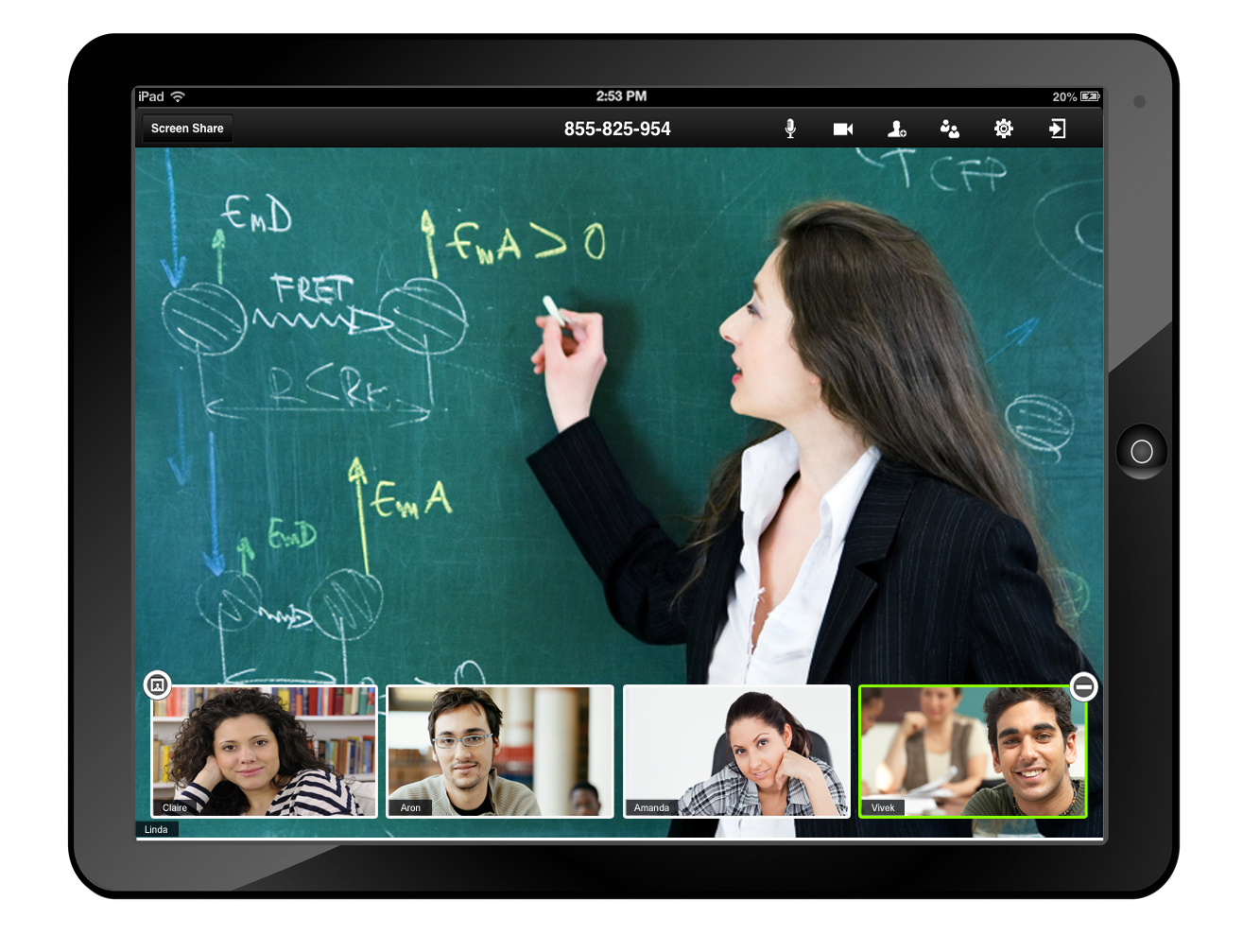


6. Flipped learning. Rather than lecture to the class, the teacher can create a video on YouTube or Vimeo and give the link to the class to watch for homework, provided they have a way to access the Internet. The next day the students can use the class time to collaborate on a project related to the video rather than listen to the teacher lecture. 


Web 2.0 provides the teacher with multiple methods to diversify her teaching and assessment. It also gives students alternative modes of participating and expressing their knowledge. It is a great way to incorporate UDL into the classroom.  It has also been said that students work harder at their writing and projects when they know they will be shared with the world rather than just with the teacher. So using Web 2.0 is one good way to integrate technology into the classroom.


Wednesday, June 4, 2014

BYOD and Class Flipping


Thoughts to ponder this week:

1.  How would a school implement a BYOD initiative and  ensure student safety? Who is responsible for the technology if students bring their own devices to school? 

A BYOD implementation would have to be planned carefully, including having students sign an AUP which defines usage policies and penalties for misuse.  Students should discuss rules for digital citizenship and privacy to ensure that FERPA and COPPA rules are maintained.   There are many questions around who supports devices owned by the students or their families, how do we ensure student safety, what access will students have to school networks, how will schools maintain bandwidth to support student devices, how do teachers manage an assignment that can support multiple device types?   I found this website this week that has a lot of information on implementing a BYOD program, it's worth checking out.

2. Flipping the classroom is an alternative to learning a lesson within the classroom, and it allows students to learn at home. How do we provide access for all learners to take advantage of this learning experience?

An alternative to flipping the classroom, if students do not have Internet access at home would be to "flip" the class within the classroom.  Instead of the teacher doing the lecturing or leading a lesson, students could access online MOOCs, like Khan Academy or iTunesU, etc. to learn the subject matter and then have a followup discussion or activity after the students are finished or in the next class meeting.  

3. Virtual high schools are an option for students all over the United States. What type of student would be most successful in a virtual learning environment?

This question is answered in 2 blog posts I wrote for EDU641:

Saturday, May 31, 2014

Voice messages from your blog page!

I just discovered a tool called SpeakPipe which allows readers of your blog to send you a voice message.  Messages will show up in your SpeakPipe account, and you will also receive an email message when you receive a voice message in the email that you set up on your SpeakPipe account. 


The free plan allows you to have 20 messages per month, of a maximum duration of 90 seconds each.

Just embed the code in an HTML widget on your blog and you are good to go.  Directions are here. You will see a tab on the right side of your blog that says, Send Voicemail. Users just click record and send.  Check it out by clicking on the tab to the right, or you can do a test at speakpipe.com.

Tuesday, May 27, 2014

Global Learning

As Thomas Friedman, in The World is Flat, says, due to outsourcing and offshoring, along with help from the Internet, "the global economic playing field is being leveled".  People have been talking about the global economy for many years. We call for help with our computers, or our satellite TV and we end up speaking to people from India or Mexico. When I worked in commodity management in high tech in the 90's, I had to work with manufacturing plants on both coasts as well as in Canada, Germany and Spain and also Korea. 

Online learning allows people from anywhere in the world to attend classes together at SNHU and other universities. The Internet allows people to connect with each other instantaneously across the world.  Students can communicate with other students from across the world and learn first hand from the natives of the countries, rather than reading about places in books. Web 2.0 allows people to create and interact online.  Julie Lindsey and (my mentor) Vicki Davis created the Flat Classroom Project in 2006, which showed us how it could be done.   Unfortunately, that project has been terminated, (after I bought the e-book) but it is still a good guide and there are new projects that have spawned from it. 


Photo from Amazon.com

Being a connected educator allows teachers to connect with other teachers via Twitter, nings, and blogs.  Connecting to other educators can help you to find partner teachers with which to collaborate.  Skype in the Classroom connects teachers who want to collaborate on a project.  I tried last winter to set up a link between a classroom in my school and some other special education students in another state to play Mystery Skype, a 20 Questions type of game where the students using Skype try to figure out where the other class is from by asking yes-no questions, and using maps and their knowledge of geography to guess. Unfortunately, it didn't happen due to scheduling issues and the holidays, and then other projects took precedence, but I hope to try again next year. Our issue was trying to find a group of special needs students.  I think it would be easier with a regular elementary class. They even have a webpage to search for a compatible class and a Twitter hashtag - #Mysteryskype. I also recently read about Quadblogging, where you link up with three other schools to have students share blogs and comment on each other's blogs, one school at a time.  I plan to try to set that up for my information technology class next year.  I think that this would teach students both collaboration and communication skills as well as literacy skills.


Wednesday, May 21, 2014

Digital Storytelling


It seems like every technology class I take, everyone uses Animoto, which is a great, user friendly tool to create a visual photo show, but there are many digital storytelling apps and tools.  Here are some that I have used or at least played with. 

Oh, my Animoto project is at the bottom of this post. 


Web Tools for Digital Storytelling:

Simple Booklet – Lets you create digital books by inserting
photos, images, videos, and adding text.  You can format the pages like you do a word document. Can be shared with anyone via the internet. Teacher account is $10/yr for 30 students. They do have a free account but books are only accessible for 14 days. Here's a book some of my students made after studying about Kenya:

simplebooklet.com
Click the arrow to change the page, or go to this link:
 http://simplebooklet.com/kenya for a larger view


Storybird – The site provides beautiful artistic images submitted by artists which you can use to illustrate and spark ideas for a story.  Free for up to 35 students.  Here is an example created by one of my Autistic students. The page turning icon follows your mouse.


Meograph – Uses a timeline and maps to create a 4 dimensional story.


Scratch – A simple programming tool that uses blocks that snap together to form scripts (programs) that let you move characters around a stage, import sounds, use speech bubbles or voice recordings to create a story or project, even video games, while learning basic programming lingo.  

Click on the green flag to start.


StoryboardThat – A new one I found recently, reading a blog,  lets you customize cartoon characters by changing physical attributes and then use speech bubbles to create dialog. Can upload or create vector images with paid versions. Up to 15 blocks for paid versions, or 6 for the free version.


Other online digital storytelling tools:

Powtoons Allows you to create animated slideshows by dragging and dropping characters, props and text plus record your voice to narrate the story.

Tarheel Reader - Another one I heard about in a webinar a few weeks ago, is a great place for students with physical disabilities to read, because it is switch accessible. But also an easy to use digital book creator with text to speech so it reads the typed text to the reader.

VoiceThread – A presentation tool that allows you to collaborate, create and share digital stories using imported drawings or presentation slides.

Bitstrips – A comic strip creation tool that allows you to create fully customized characters and add dialog bubbles to create a story.


iPad apps:

BookCreator (iPad)  Lets you create iBooks for your iPad by importing pictures, video, sound, and use text, handwriting or voice recording.  Can export and share as well. There is a free version and a paid version for $4.99.

Pictello – An iPad app that lets you import images and text or voice to create a digital talking story. $18.99

Educreations A storytelling or presentation app, allows you to narrate while drawing or importing images, and it's free.

iMovie Trailer – Allows you to create a movie trailer type of story using photos taken with your iPad or imported images. Add text and music and create a dramatic “preview” story. iMovie is an app on iPad or Mac.


30hands – Is an iPad app that also allows creation of presentations using photos, images, drawings and recordings of  your voice to tell a story.

Toontastic – Allows you to create animated cartoons on the iPad. $9.99 for school addition, contains all the in-app additions from the free version.

DoInk Animation – Another iPad app I discovered recently allows you to create animation paths using your finger, draw your own illustrations or use stock illustrations in the app. 


My Animoto Story:


Thanks to Brian Gray for this info, you can get a free education account by going to  http://animoto.com/education/classroom.  You can create 3 minute videos with no watermark, and use the site for up to 50 student accounts for 6 months free.


Sources:

Hughes, A. (2013) Causes of the civil war. Meograph. [Slideshow]. Retrieved from:             http://www.meograph.com/ahughes17/15303/causes-of-the-civil-war
Ray, R. (2013). A midsummer night's dream. StoryboardThat.com. [Storyboard]. Retrieved    from: http://www.storyboardthat.com/userboards/rebeccaray/a-midsummer-nights-dream
Koren, N., Medeiros, C. and Peb08.  (2013). Pass it on, Halloween tale remix. Scratch  Community. [Scratch programming project]. Retrieved  from:   http://scratch.mit.edu/projects/13875740/
C., Carlos. (2013). The skin I'm in, Book trailer by Carlos C. [YouTube video].  Retrieved from: http://booksnitch.wordpress.com/resources-and-teaching-ideas/creating-a-book-trailer-using-imovie/


Tuesday, May 13, 2014

Google Apps


Google Apps are great for schools, or anyone, because everything is stored in the cloud and accessible from anywhere, no more emailing documents to yourself or carrying them around on a flash drive (Byrne, 2014). Documents can be shared with everyone, or just certain people, or anyone you send the link to. I was surprised to learn this week that Google is encrypted, a concern that my director of technology has about using websites to store student work. But the best thing about Google for schools is the ability to collaborate on a document to create a group project.  I had to do that in my last technology class at SNHU.  We worked with a partner via a Google Doc to plan and revise a lesson.  It is possible to add to your peers' work or leave comments.  We have also been doing this in a committee I am a member of at work that meets once a week, where we are revising our teacher evaluation process and forms. We are able to talk about ideas during our lunch meeting, and then update the documents via a shared Google doc when we have time. 

I have taken a couple of workshop classes online using Google Groups as well. Google Groups is similar to Blackboard's discussion board, where you can create topics and have discussions on them. 
Google Hangouts are another excellent tool for school collaborations or distance learning. Students could hang out with an expert in science or an author and learn from authentic sources. I was in a six-week workshop last summer (to learn Scratch) that used Google Groups, Google +, and Hangouts to communicate with other learners and with the trainers as well during virtual office hours via Hangouts.  We also used Google Drive to create and share our notebooks (created on Google Presentation).  I read a post recently by a former classmate about using iPads and Google Drawings as an interactive whiteboard.

Even though we are not a GAFE school, I have used Google Forms to do surveys with my students as well as to survey the teachers on what apps we should buy in volume for our classroom iPads.  As part of an assignment for another technology class, I surveyed the teachers in the school to gauge their level of technology use in their classrooms. I teach my ICT students to use Google Presentation as an alternative to Powerpoint, and also teach them how to create their own websites using Google Sites.  I think that using Google Drive is a good idea, because people can share documents without having to worry about whether they have the proper application or version to share documents, as it is accessible via PC's as well as Macs. 


Students going off to college should learn to use Google Drive, then they don't need to buy expensive software to do their term papers. Google Docs even has add-ons now, one of which is Easy Bib for quick citations.  At a webinar I attended this week, someone mentioned using Google Translate to help ESL students to understand textbook content by translating it into their native language!

As you can see, Google apps have so many uses and make sense to use in school.


Resources cited:

Byrne, R. 2014). Google documents for teachers. [Weblog].   http://www.scribd.com/doc/88518869/Google-Docs-for-Teachers-2012

Google.com. Google apps for education.
http://www.google.com/enterprise/apps/education/benefits.html

Norkun, M. (2014). Use Google drawings as an interactive whiteboard. [Weblog]. http://tech-4-education.blogspot.com/2014/02/use-google-drawings-as-interactive.html


Monday, April 28, 2014

Social Networking in School

According to the National School Boards Association (2007) almost 60% of students using social networking discuss education and schoolwork. (Solomon and Schrum, 2010).  I personally can attest to the value of learning through social networks.  By using sites like Twitter, Edublogs and Classroom 2.0, teachers can be linked to millions of teachers around the world and learn from each other. They also share their own ideas and resources and thus become reflective learners.  Students could benefit from these tools as well. If the majority of kids are using social networking to talk about schoolwork, why not make it available in the classroom?
ASCD.org

There are several ways to teach kids to use social networking in school without exposing them to the dangers of the Internet. Educational sites like Kidblog, Edublogs, Edmodo, ePals and Wikispaces Classroom, to name a few. These are great sites for sharing information within a class or between classes. The teacher moderates what and who are allowed on the sites. Using these sites kids can learn rules for digital citizenship while interacting with other students.  Another site for interacting with other students from around the world is Skype in the Classroom. There are also educational portals for Glogster, a multimedia poster creation site, and Voki - a site that allows students to create a talking avatar. 


Once students have had a chance to use these tools and learn how to interact with peers and others, locally and around the world, they could be ready to use other social networking tools, provided they are over 13, which most social networks require and they follow the rules.  This is a great way to teach students to create positive digital footprints. I loved the Ning rules laid out by Michael Umphrey in Chapter 5 of Web 2.0 How to for Educators (Solomon and Schrum, 2010).

Twitter could be used in the classroom with classroom hashtags, and using alternative Twitter feed sites, such as TweetChat or Twubs, which limit the screen to the chat only, eliminating distractions.  TweetChat also allows you to block people, if they are posting inappropriate comments.  But if your students don't follow the rules, they should also lose their right to post – a good way to embed digital citizenship lessons into the project. 

Teachers can use social media in class, to get input from everyone, especially the ones who don't want to speak up in class.  Students can also use social bookmarking tools like Evernote and Diigo to share information on research for projects with group members.  

Social networking allows people to learn from people outside of their local sphere and expands your knowledge base.  It allows students to interact with each other and their teachers even after school hours, to ask questions about homework, share notes, or expand on class discussions. 

More blogs on this subject:

A Guidebook for Social Media in the Classroom by Vicki Davis

Using Social Media in the Classroom for Real World Learning (Teachthought)

Seven Ways Teachers Use Social Media in the Classroom (Mashable)


Jeff Parker, 2012 Florida Today


Sources cited:
Solomon G. and Schrum, L. (2010). Web 2.0, How to for educators. Eugene, OR:ISTE.